
← All work

Case study

One product that brings every stage of a construction project into one place

This project explored how design could connect the people, workflows and data behind a construction project, from the first task to the last approved bill. As the only designer, I shaped a SaaS platform for desktop and mobile that gives teams in the office and in the field one source of truth, from specs and information architecture to UI and a full design system.

  • Complex systems
  • Design system
  • Web app
  • Mobile app
Company
Construction & infrastructure
Year
2025–2026
Role
UX, UI, design system
Team
Dev, QA
Tools
  • Figma
  • Claude
  • Claude Code

01 — Context

Where this project started

The company is a construction and infrastructure firm with its own technology team. I joined that team as its product designer, to help build a platform that brings everything a construction project needs into one place.

Its customers are public bodies, mostly the construction and infrastructure departments of municipalities and regional councils. For them, a single project means tasks, drawings and maps, daily work logs, and a long chain of budgets, bills and approvals for workers and suppliers. The platform had to hold all of it.

02 — Problem

One project, too many places

On construction and infrastructure projects, information lives in too many places. Tasks sit in one tool, files and plans in shared folders, and contractor bills, bills of quantities and approvals in spreadsheets and email threads.

That leaves project managers unable to see, in one place, where a project stands, what is waiting for their approval or how much budget is left. Customers already had a very basic system, but it wasn't keeping up with the work.

So the project started with a simple question: what would it take for a project manager to find everything about a project in one place, whether they're in the office or on site?

03 — Research

How I studied the problem

I approached research from two sides. The first was the people who would use the system every day: what their work looks like on site, and where the existing system stopped helping them. The second was the market: products that already solve parts of the same problem, and what each of them does well.

Part 1 User research

Meet Avi

Avi, a project manager in a white hard hat on site

Avi L.

Age
52
Role
Project manager
Works from
The site and the office, about half and half

Bio

Avi has worked in construction for over 20 years, first with contractors and now on the client side. He runs several public projects at the same time, such as roads, schools and public buildings, and works with contractors, supervisors, planners and the finance team.

A typical day

Mornings on site with the supervisor and the contractor, afternoons in the office on approvals and bills. Between the two, he checks things on his phone in the car or in a short break.

Pain points

  • Tasks, drawings and bills for the same project sit in different tools, emails and spreadsheets.
  • He can't see in one place where a project stands, what's waiting for his approval, or how much budget is left.
  • The current system is basic, and moving between screens means he loses his place.
  • On site there's no time to learn new screens or hunt for a button.

What he needs from the system

  • Everything about a project in one place: tasks, files and drawings, work logs and finance.
  • One clear next step on every screen, and a way back that's always visible.
  • The same project on his phone on site and on his desktop in the office.
  • To see right away what needs him: approvals, delays and open bills.

The need

Avi needs one place where every project's tasks, files and money are connected, and simple enough to use between site visits, so he can keep projects moving without chasing information.

Part 2 Competitive research

Learning from the tools people already use

No single product covered everything our customers needed, so I looked at the market module by module. Autodesk Construction Cloud was the closest to what we were building. For tasks, files and finance, I studied the products people already use every day, to learn the patterns they already know.

  • Projects & tasks

    Monday.com, Asana, Autodesk Construction Cloud

    Tables grouped by status and sorting, a hierarchical sidebar and navigation, and how construction projects are structured.

  • Files

    Google Drive, OneDrive

    Document viewing and "Shared with me".

  • Finance

    Morning / Green Invoice, Benarit, Revolut

    A clean financial UI in Hebrew with VAT built in, visual polish and thin ring charts.

04 — Insights & approach

Turning research into a UX

The research kept pointing to the same picture. Every project was spread across separate tools, and the people running it had to hold it all together themselves. Nothing connected a task to its drawings, or a drawing to the bill it led to.

That made the direction clear: bring those tools into one platform, where every part of a project opens in the same place, on desktop and on mobile.

The goal worked on two levels. For the client, one synced system for everyone along the chain, from project managers and supervisors to the people who upload drawings. For the people using it, screens simple enough to understand between site visits, with one clear next step.

Today

One person, many disconnected tools

Each tool holds one piece of the project. Nothing connects them, so the project manager keeps running between them, and the full picture lives only in his head.

With the platform

One platform that connects everything

Tasks, files, finance and work logs open inside the same project, on desktop and on mobile.

05 — Flow & exploration

How the products connect

Log in Home dashboard
ProjectsProject pageTable · Kanban · GridTask and subtasks
FilesMy filesShared with meFile view
FinanceBill of QuantitiesContractors · Price listsBill approval
Work logsDaily log
MapsProject on map
SettingsGeneral · NotificationsRoles & permissionsTransfer roles & access

06 — Design system

Building one design system for every screen

Colors

Grey

  • 0#FFFFFF
  • 10#F6F8FC
  • 20#F1F4F9
  • 30#E2E8F0
  • 40#CBD4E1
  • 50#94A3B8
  • 60#64748B
  • 70#475569
  • 80#27364B
  • 90#1E2A3B
  • 100#0F1A2A

Purple

  • 25#FAFAFF
  • 50#F4F3FF
  • 100#EBE9FE
  • 200#D9D6FE
  • 300#BDB4FE
  • 400#9B8AFB
  • 500#7A5AF8
  • 600#6938EF
  • 700#5925DC
  • 800#4A1FB8
  • 900#3E1C96

Indigo

  • 25#F5F8FF
  • 50#EEF4FF
  • 100#E0EAFF
  • 200#C7D7FE
  • 300#A4BCFD
  • 400#8098F9
  • 500#6172F3
  • 600#444CE7
  • 700#3538CD
  • 800#2D31A6
  • 900#2D3282

Error

  • 25#FFFBFA
  • 50#FEF3F2
  • 100#FEE4E2
  • 200#FECDCA
  • 300#FDA29B
  • 400#F97066
  • 500#F04438
  • 600#D92D20
  • 700#B42318
  • 800#912018
  • 900#7A271A

Warning

  • 25#FFFCF5
  • 50#FFFAEB
  • 100#FEF0C7
  • 200#FEDF89
  • 300#FEC84B
  • 400#FDB022
  • 500#F79009
  • 600#DC6803
  • 700#B54708
  • 800#93370D
  • 900#7A2E0E

Success

  • 25#F6FEF9
  • 50#ECFDF3
  • 100#D1FADF
  • 200#A6F4C5
  • 300#6CE9A6
  • 400#32D583
  • 500#12B76A
  • 600#039855
  • 700#027A48
  • 800#05603A
  • 900#054F31

Gradient

  • 600#6938EF700#5925DC
  • 700#5925DC800#4A1FB8
  • 800#4A1FB8900#3E1C96

Typography

Inter

Regular · Medium · Semibold · Bold

Type scale
StyleSizeLineWeight
Title 4242px58pxBold
Title 3232px40pxBold
Title 2424px36pxMedium
Subtitle 2020px24pxBold
Subtitle 1818px22pxSemibold
Body 1616px24pxRegular
Body 1414px22pxRegular
Caption 1212px20pxRegular
Button 1414px18pxMedium

Components

From the smallest parts to full screens, following Atomic Design.

01 Atoms

Icons, Default and active

Actions

  • Notifications icon, default and activeNotifications
  • Search icon, default and activeSearch
  • Settings icon, default and activeSettings
  • Delete icon, default and activeDelete

Views

  • Kanban icon, default and activeKanban
  • Grid icon, default and activeGrid
  • Table icon, default and activeTable
  • Tasks icon, default and activeTasks

People & planning

  • Users icon, default and activeUsers
  • Add user icon, default and activeAdd user
  • Calendar icon, default and activeCalendar
  • Folder icon, default and activeFolder

Files

  • Document icon, default and activeDocument
  • Upload icon, default and activeUpload
  • Copy icon, default and activeCopy
  • Subtask icon, default and activeSubtask

Buttons

Button component with all its variants: default, hover, disabled, pressed and outline, each for desktop and mobile
DefaultHoverDisabledPressedOutline

02 Molecules

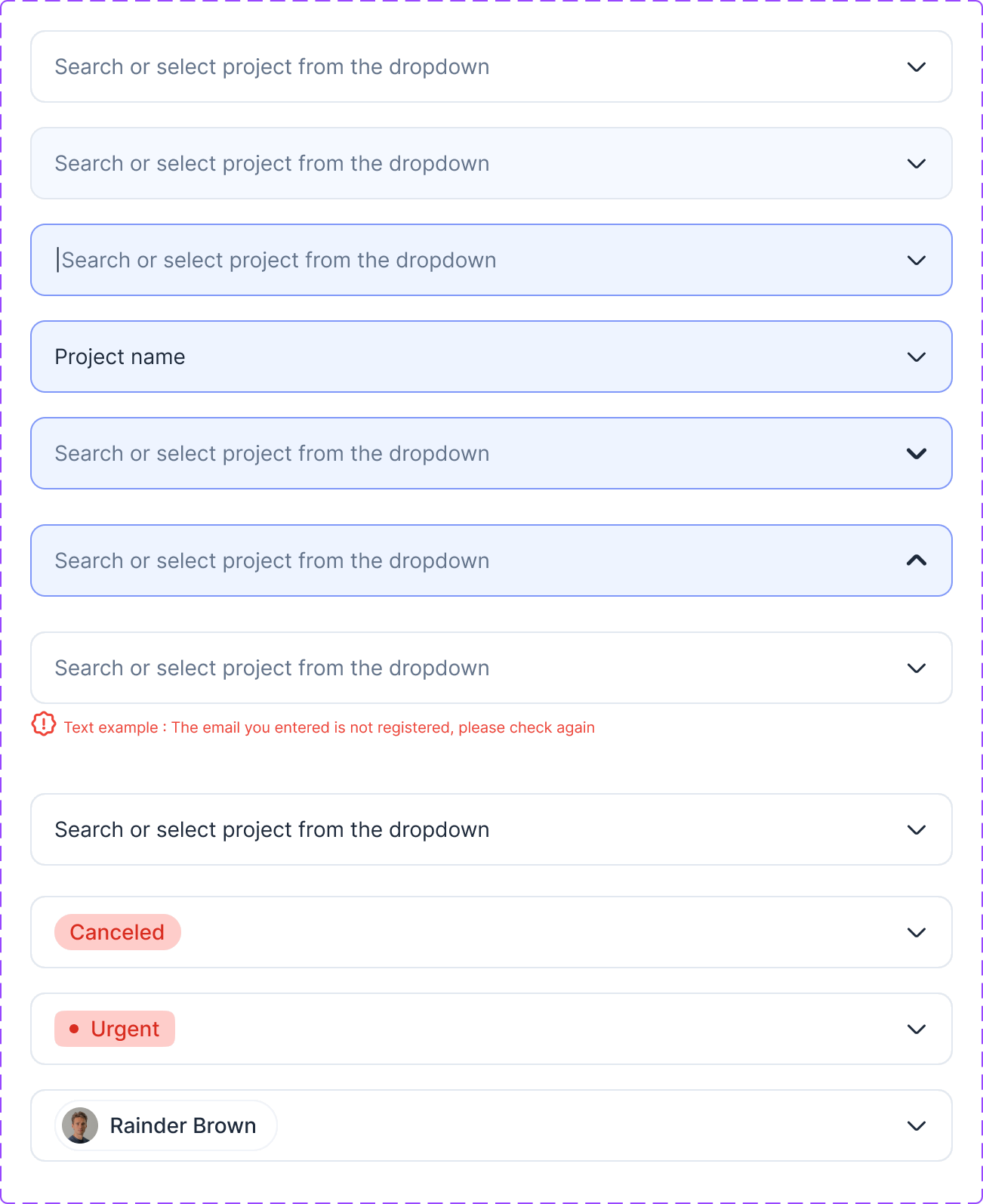
Input field

Input field component with all its variants: default, hover, typing, filled, open dropdown, error, and with a tag, status or user

03 Organisms

Sidebar, all variants

Popup form

07 — Decisions

Turning insight into a design

01 · Home page

One dashboard with the highlights every user needs to know

The first version showed only pinned projects and tasks. The final one has ten areas in three zones: pinned items, my tasks with KPIs, what's new, new files and mentions. Each area is a container with a title and a counter.

02 · Projects page

All of a project’s tasks, in one view

The project page shows all of a project’s tasks in a table or on a Kanban board. The table has columns for Priority, Estimates, Status, Assigned and Timer, with more options under Actions. Users can create subtasks, filter and sort the tasks, and open more tabs linked to the project.

03 · Files

Sharing a file without sharing the whole system

Files live in a folder tree, with one action bar for share, download, move and more. "Shared with me" groups files by workspace and shows who shared each file and what you're allowed to do with it.

04 · Finance

A finance overview, and a finance page for every project

Construction finance runs from estimate to retention release, with several approvers on the way. A general finance page gives the full picture, and each project has its own finance page linked to it.

The project finance page shows how many steps the project’s finance flow has, how much has been paid, how much is left to pay and the total project budget. Bills are split into tabs by status, each with a counter, and at bill level a five-step progress bar shows exactly where a bill stands.

08 — Outcome

What changed for customers

The new design shipped to existing customers as an opt-in toggle, running side by side with the current interface, so people could switch when they were ready.

Customers were impressed. They said it's much easier, more comfortable and clearer to use, and that the order of screens makes more sense. It's still early, so there are no usage numbers yet.

Let’s create awesome
products together